My Keyboard Changed How I Use Computers
How the ZSA Moonlander, Vim motions, Vimium, and Hyprland keybindings turned me into a mouseless developer. The journey from membrane QWERTY to split ergonomic everything.
I grew up using regular membrane keyboards my entire life. QWERTY, no questions asked. I never wondered why the keys were arranged the way they were, never thought about whether there might be something better. The keyboard was invisible to me — just a thing that turns thoughts into text.
Then I got a ZSA Moonlander, and within a week I couldn’t type my own password without looking at my hands.
A Brief History of Why Your Keyboard Is Wrong
Before I get into my story, here’s something that still blows my mind: the reason your keyboard keys are staggered — offset from row to row in that familiar diagonal pattern — has nothing to do with your fingers. It’s because of metal arms from 1868.
On the original Sholes & Glidden typewriter, each key was connected to a metal typebar via a mechanical lever. All these levers had to converge on a single striking point. To fit dozens of lever arms side by side without them colliding, the rows of keys were horizontally offset so the arms could run parallel. The offset amounts (0.25u and 0.5u between rows) are literally the clearance tolerances needed to prevent mechanical arm jams.
Your laptop keyboard in 2026 faithfully replicates the spacing constraints of 158-year-old mechanical arms that no longer exist.
And QWERTY itself? The popular story is that it was designed to slow typists down so the typebars wouldn’t jam. That’s a myth — touch typing hadn’t even been invented yet when Sholes patented the layout. Researchers at Kyoto University found that QWERTY was actually shaped by telegraph operators translating Morse code — certain letter pairs needed to be near each other for quick disambiguation of similar Morse sequences. Christopher Sholes spent the rest of his life designing layouts he considered superior, but Remington had no interest in changing what was already selling. Then in 1893, five typewriter manufacturers merged and standardized on QWERTY, killing competing layouts overnight.
We’ve been stuck with it since.
Why I Bought a Split Keyboard
I spend 12+ hours a day at a computer. I code, I browse, I game — and my wrists were starting to let me know they didn’t appreciate it. That’s not unusual: studies show computer professionals get carpal tunnel syndrome at roughly twice the rate of the general population — 13% vs 3-6%. Working more than 12 hours a day pushes your risk nearly 5x higher.
The RSI hall of fame includes some legendary names. Richard Stallman — the creator of Emacs — was told by doctors to stop touching a keyboard entirely for 6-12 months or risk permanent inability to type. The irony: the Ctrl-heavy Emacs keybindings he designed contributed to his injury. The developer community even has a name for it: “Emacs pinky.”
I wasn’t at that point, but I could feel the trajectory. So I started researching ergonomic keyboards. Most of them looked like medical equipment. Then I saw the Moonlander.
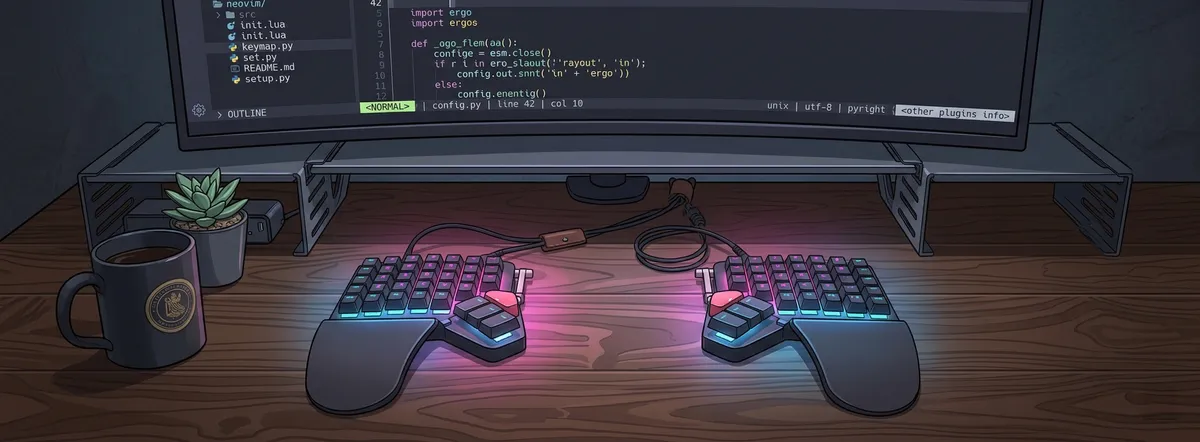
The Moonlander is a split keyboard — literally two separate halves that you position at shoulder width. The keys are arranged in columns instead of staggered rows, each column offset vertically to match your finger lengths. It has an articulating thumb cluster you can angle for your hand size, built-in tenting legs, hot-swappable mechanical switches, and RGB backlighting. It runs on QMK open-source firmware and has a browser-based configurator called Oryx where you visually design your layout, compile the firmware in the cloud, and flash it to the board.
At $365, it cost more than any peripheral I’d ever bought. But I spend more hours on my keyboard than I do in my bed, and nobody questions spending $500+ on a mattress. So I ordered it.
The First Two Months Were Brutal
The Moonlander arrived. I plugged it in. I placed the two halves on my desk, shoulder-width apart. I looked at the columnar layout where all the keys sit in neat vertical columns instead of the familiar diagonal stagger.
Then I tried to type my password and got it wrong four times in a row.
My typing speed collapsed to about 30-35 WPM. I don’t know exactly what it was before — I never measured it, which is the kind of thing you only regret once it’s too late. Whatever it was, it was gone. The columnar layout completely rewired what my fingers expected. Keys that used to be slightly to the left were now directly above. The B key, which I’d always hit with my left index finger reaching right, was now cleanly in the right half. My pinkies suddenly had less to do, and my thumbs — which had spent their entire lives pressing Space and nothing else — were now responsible for Backspace, Enter, and layer switching.
For the first two months, I kept my old Microsoft membrane keyboard on the desk next to the Moonlander. When I needed to type something fast — a Slack message during a meeting, a complex regex, anything with brackets and symbols — I’d reach for the old board. It felt like cheating. But I had work to ship, and pride doesn’t pay the bills.
The worst part was the dual-function modifier keys. In the Moonlander’s default layout, Z works as z when you tap it quickly, but activates Ctrl when you hold it down for about 200ms. Sounds clever, right? In practice, it means every Ctrl+C has a tiny but infuriating delay. You hold Z, wait a beat, then press C. During coding this is annoying. During gaming, it was a disaster — I’d try to crouch and instead spam z into the chat. My teammates were not impressed.
There were moments I genuinely thought about returning it. One particularly bad evening, I was trying to debug something at work, and between the wrong keys and the modifier delays, a task that should have taken ten minutes took forty-five. I sat there staring at this sci-fi looking keyboard on my desk and thought, “I paid $365 for this?”
But I didn’t return it. Partly stubbornness, partly because I could feel — underneath the frustration — that the idea was right. My wrists did feel better with the split position. The thumb clusters did make more sense than a 6.25u spacebar. The layout just needed to get from my brain into my muscle memory.
Around week six, something shifted. I stopped reaching for the membrane keyboard without thinking about it. By month three, I stopped reaching for it at all. It went into a drawer, and I haven’t taken it out since.
How I Trained
I didn’t just grit through it — I actively practiced. Three tools made the biggest difference:
typ.ing is ZSA’s own typing trainer. It connects to your Moonlander via the browser (WebHID) and shows your exact layout in real-time, including which layer you’re on. When you hit a key, it lights up on the visual layout. It has modes for prose, programming syntax (brackets, semicolons, operators), and a “Whack-a-key” mode where it highlights a random key and you have to find it. That last one sounds dumb but was genuinely useful for symbols I’d relocated to other layers.
Epistory — Typing Chronicles is a game on Steam where you ride a giant fox through a world made of origami paper and fight corruption by typing words that appear above enemies. WASD for movement, typing for combat. The difficulty adapts to your speed — so whether you’re at 30 WPM or 80, the enemies match you. It supports Colemak, Dvorak, and other layouts. ZSA bundles a free Steam key with the keyboard, which is a nice touch. I’d put in 30 minutes after work most evenings, and it made practice feel like play instead of homework.
MonkeyType for raw speed tracking. I’d do a quick 60-second test every few days to see if the numbers were climbing. They were — slowly, but consistently. Watching the graph trend upward over weeks was the motivation I needed to keep going.
My Layout: Less Is More (Eventually)
Oryx is where you configure the Moonlander’s layout, and it’s genuinely one of the best pieces of software I’ve used. It’s a visual editor in the browser — you click a key, assign it a function, and it supports up to 32 layers. Every change is version-controlled. You can fork other people’s layouts. When you’re done, it compiles the firmware and you flash it with their desktop app Keymapp.
I started with the default layout and barely touched it for the first month. My only rule: don’t change two things at once. Get comfortable with the physical board first, then customize.
Here’s what I ended up keeping and loving:
The thumb cluster is where the Moonlander earns its price. I have Space and Backspace under my left thumb, Enter and layer toggle under my right. This sounds minor until you realize your pinkies no longer handle Backspace (that awful reach to the top-right) or Enter. Your strongest, most precise fingers are doing the most frequent work. Going back to a normal keyboard now feels like being asked to operate a door handle with your elbow.
Layer 1: Media and navigation. Volume up/down, play/pause, next/previous track, and arrow keys. I didn’t know I wanted dedicated media keys until I had them. Adjusting volume without alt-tabbing to a media player is the kind of small luxury that adds up over a full day.
Mouse mode. An entire layer that turns the keyboard into a mouse — WASD moves the cursor, keys for left/right click and scroll wheel. I thought this would be a gimmick. It’s not. When you’re three tmux panes deep and need to click a link in a browser tab, reaching across the desk for a mouse feels absurd once you’ve experienced just tapping a layer key and moving the cursor from home position.
What I haven’t done yet: home row mods. This is the technique where your ASDF and JKL; keys output letters when tapped but act as Shift, Ctrl, Alt, and Super when held. It completely eliminates pinky strain from reaching for corner modifiers. The community swears by it — especially the GACS order (GUI, Alt, Ctrl, Shift from pinky inward, mirrored on both hands). Oryx has a feature called Tap Flow designed to prevent misfires during fast typing. It’s on my list.
Some people in the community go much further — reducing to 36 active keys across 5+ layers, switching to Colemak-DH, adding tap dance (one tap for ;, two taps for :), combos (press J+K simultaneously for Escape), and Caps Word (a smart Caps Lock that auto-deactivates at the end of a word, turning - into _ so you can type CONSTANT_NAMES without holding Shift). There’s a YouTuber named Ben Vallack who went from a standard keyboard to a Moonlander to a Corne to a Ferris Sweep (34 keys) to a custom 18-key keyboard he designed himself. The mechanical keyboard community has a word for the mythical perfect setup: endgame. The universal joke is that endgame doesn’t exist. You always want to try one more thing.
I’m keeping it simple for now. But I get it. I already catch myself browsing KeymapDB for layout inspiration at 1 AM. The rabbit hole is real.
The Rabbit Hole: Going Mouseless
Getting the Moonlander didn’t just change how I type. It changed how I think about input. Once your hands are parked at shoulder width on a split board and everything is reachable without moving your wrists, you start noticing every time you break that position to grab a mouse. And you start wondering if you have to.
Turns out, for most of what I do — writing code, browsing the web, managing windows — you don’t.
Vim and Neovim
I’m learning Neovim with the LazyVim distribution. LazyVim comes with file explorer, syntax highlighting, Git integration, LSP, Telescope fuzzy finder — the whole IDE experience, pre-configured. You still need to learn Vim’s actual editing model, but at least you’re not spending a week choosing between 47 status line plugins.
Vim is modal. In Normal mode, keys are commands — d deletes, w means “word”, j moves down. In Insert mode, keys type characters like a normal editor. You switch between modes constantly. At first, this is maddening. You’ll try to type a comment and accidentally delete three lines because you forgot you were in Normal mode. You’ll hit Escape so often it becomes a nervous tic.
But then the composability clicks. Vim isn’t a list of keyboard shortcuts to memorize — it’s a language. You learn a small vocabulary of verbs (delete, change, yank) and nouns (word, line, paragraph, inside quotes, until character), and you combine them:
dw— delete wordci"— change inside quotes (delete the text between the nearest"marks and start typing)dt)— delete until the next)character3dd— delete three linesviw— visually select the current wordggVG— select the entire file
You can compose commands you’ve never explicitly learned, because the grammar is consistent. That’s the moment people talk about when they say Vim “clicks.” It’s not that you suddenly memorize all the keys. It’s that you realize you don’t have to.
Here’s the thing about Vim on a Moonlander: the hjkl navigation keys (left, down, up, right) are a famous Vim quirk that confuses every beginner. Why not just use arrow keys? On a staggered keyboard, hjkl is a weird diagonal row of keys. On a columnar keyboard, j and k are directly above and below each other — they physically represent down and up. The Vim navigation that felt arbitrary for 30 years suddenly feels obvious on hardware that aligns with it.
I’m not fast yet. I still reach for VS Code when I need to get something done quickly. But each week, I reach for it a little less. The LazyVim for Ambitious Developers online book has been a great reference — it’s free and written specifically for people transitioning from graphical editors.
Vimium: The Browser Without a Mouse
Vimium is a browser extension for Chrome and Firefox, and it might be the single best productivity tool I’ve ever installed. It brings Vim-style navigation to web browsing. The tagline is “The Hacker’s Browser.”
The killer feature is hint mode. Press f, and every clickable element on the page — links, buttons, inputs — gets a small yellow label with one or two letters. Type those letters, and you “click” that element. Press F instead to open the link in a new tab. That’s it. No mouse, no trackpad, no reaching. You see a link, you press two keys, you’re there.
The rest follows Vim logic, and if you’re already learning Vim, it’s basically free:
j/k— scroll down/upd/u— half-page down/upgg/G— top/bottom of pageJ/K— previous/next tabx— close tab,X— restore closed tabo— open URL, bookmark, or history search (a mini address bar that pops up from the bottom)yy— copy current URLgi— focus the first text input on the page/— find on page
The first day I installed Vimium, I caught myself reaching for the mouse out of habit about fifty times. By the end of the week, I was reaching maybe five times. Now, when I use someone else’s computer without Vimium, I feel physically clumsy — pressing f and nothing happening, scrolling with a trackpad like some kind of caveman.
There are more powerful alternatives — Tridactyl for Firefox has full scripting and .tridactylrc config files you can version-control, and Surfingkeys lets you write custom JavaScript mappings — but Vimium nails the balance of power and simplicity. Install it, use it for a day, and you won’t go back.
Hyprland: Vim for Your Desktop
I run Hyprland as my window manager on Arch Linux. It’s a dynamic tiling Wayland compositor — windows automatically arrange themselves without overlapping, and you control everything with keyboard shortcuts. No title bars to drag, no window edges to grab and resize with a mouse.
The natural move was to set up hjkl bindings for window management, so the same directional logic works everywhere:
# Focus windows
bind = SUPER, H, movefocus, l
bind = SUPER, J, movefocus, d
bind = SUPER, K, movefocus, u
bind = SUPER, L, movefocus, r

# Move windows
bind = SUPER SHIFT, H, movewindow, l
bind = SUPER SHIFT, J, movewindow, d
bind = SUPER SHIFT, K, movewindow, u
bind = SUPER SHIFT, L, movewindow, r
I also use Hyprland’s submaps for a resize mode — it works exactly like Vim’s modal approach:
# Enter resize mode
bind = SUPER, R, submap, resize

submap = resize
binde = , H, resizeactive, -40 0
binde = , L, resizeactive, 40 0
binde = , K, resizeactive, 0 -40
binde = , J, resizeactive, 0 40
bind = , escape, submap, reset
submap = reset
Press Super+R, and you’re in resize mode. Now hjkl resizes the active window. Press Escape, and you’re back to normal bindings. It’s Vim’s modal philosophy applied to the entire desktop.
Quick app launchers round it out:
bind = SUPER, T, exec, kitty          # Terminal
bind = SUPER, F, exec, thunar         # File manager
bind = SUPER, B, exec, firefox        # Browser
bind = SUPER, SPACE, exec, fuzzel     # App launcher
The consistency across all these tools is what makes the system feel cohesive rather than cobbled together. h is always left. j is always down. Whether I’m navigating code in Neovim, clicking a link in Firefox via Vimium, or focusing a window in Hyprland — it’s the same muscle memory. My fingers learn one spatial language and it works everywhere.
Where the Mouse Still Wins
I want to be honest about where the mouseless workflow breaks down, because the keyboard-maximalist community sometimes pretends it doesn’t.
Image editing and design tools. Anything spatial — moving objects on a canvas, drawing, color picking — is fundamentally a pointer task. I still grab the mouse for GIMP, Figma, or anything visual.
Web apps with hostile UX. Some sites hijack keyboard shortcuts, or their buttons don’t have proper focus states, or they use custom dropdown menus that Vimium can’t label. Google Docs is a mixed bag. Jira is a nightmare.
Gaming. I game on the Moonlander now, but it required compromises. The dual-function modifiers that are clever for typing are terrible for games where you need instant key presses. I set up a dedicated gaming layer where Z is just Ctrl, no dual-function nonsense. The split layout itself is actually fine for gaming once you stop thinking about it — WASD is WASD regardless of stagger. But the thumb cluster positioning took adjustment, and I still wouldn’t recommend it for competitive FPS.
Casual browsing. When I’m just scrolling Reddit or watching YouTube, sometimes the mouse is faster and more relaxing. Not everything needs to be optimized. The goal was never to eliminate the mouse — it was to stop reaching for it during tasks where the keyboard is genuinely faster.
The Stack
Here’s what the full mouseless workflow looks like:
| Layer | Tool | What It Does |
|---|---|---|
| Keyboard | ZSA Moonlander | Split ergonomic hardware with QMK firmware |
| Editor | Neovim + LazyVim | Modal code editing — hands never leave home row |
| Browser | Firefox + Vimium | Hint-mode link clicking, vim-style scrolling and tabs |
| Terminal | Kitty | GPU-accelerated, keyboard-configurable terminal |
| Window Manager | Hyprland | Tiling WM with hjkl focus, movement, resize |
| Launcher | Fuzzel | Wayland-native app launcher, no mouse needed |
| Layout Config | Oryx + Keymapp | Visual layout editor and firmware flasher |
The philosophy connecting all of it: your hands stay on the home row, and you tell the computer what to do with short, composable commands. The keyboard is the primary interface. The mouse is a fallback for spatial tasks.
What I’d Tell Someone Starting Out
-
Your speed will tank. Accept it upfront. I went to 30-35 WPM and it took about three months to feel normal again. A field survey of 200 split keyboard users found no significant speed reduction after just two weeks, but your mileage will vary based on how much you type and how weird the new layout is. Don’t measure yourself daily — check in every week or two.
-
Keep your old keyboard on the desk. Go cold turkey and you’ll resent the new board. Use the Moonlander when you have breathing room, fall back to the old one when you’re under deadline pressure. The old keyboard will migrate to a drawer on its own timeline.
-
Change one thing at a time. Don’t switch to a split keyboard AND Colemak AND home row mods AND Vim on the same day. Get comfortable with the physical layout first. Then add customizations one by one. Each change resets your muscle memory; stacking them multiplies the pain.
-
Vimium is the easiest win. You can install it right now and see the benefit within an hour. It requires almost no learning if you just use
ffor hint mode andj/kfor scrolling. It’s the gateway drug to the rest of the mouseless workflow. -
Vim is a long game. Start with Vim motions in your current editor — VS Code has a Vim extension, JetBrains has IdeaVim. Learn
hjkl,w/b(word forward/back),dd(delete line),ciw(change inner word),yy/p(copy/paste line). Use these for a month before considering a full switch to Neovim. -
It’s not about purity. The mouseless approach isn’t a religion. Some tasks are better with a mouse. The goal is to reduce unnecessary hand travel for the 80% of tasks where the keyboard is faster. Dogma breeds resentment; pragmatism builds habits that stick.
Where I Am Now
The Moonlander lives on my desk at work and at home. My typing speed has recovered and is still climbing. But speed was never really the point. The point is that I interact with my computer differently now. It’s more intentional. There’s less reaching, less clicking, less breaking flow to grab a pointer device and hunt for a tiny button.
The split layout doesn’t feel split anymore — it just feels like where my hands go. Picking up a regular keyboard now is disorienting. The keys feel cramped together, my wrists angle inward, and I keep reaching for thumb keys that don’t exist. It’s the same uncanny feeling as going back to a small phone screen after using a tablet.
What surprised me most is that the keyboard was just the beginning. The Moonlander was the hardware that asked the question — “what if you didn’t have to move your hands?” — and Vim, Vimium, and Hyprland were the software that answered it. Each tool reinforced the others. Learning hjkl in Vim made Hyprland’s bindings obvious. Using Vimium made me want more keyboard control in my editor. The whole thing bootstrapped itself into a coherent system without me planning it that way.
The mechanical keyboard community calls this the rabbit hole. Cal Henderson, the CTO of Slack, has 30-40 keyboards in a cupboard. Ben Vallack went from a normal keyboard to an 18-key custom board he designed from scratch. Over 3.8 million DIY keyboard kits shipped in 2023, with sales growing 47% year over year.
I’m not that deep yet. I have one keyboard, one layout, and a Vim config I’m still learning. But I get it now — why people keep going further, keep reducing key counts, keep tweaking tap-hold timings at midnight. The rabbit hole isn’t about keyboards. It’s about the realization that the way you interface with your computer is a choice, not a given. And once you see that, you can’t unsee it.
Resources
Hardware & Configuration:
- ZSA Moonlander — the keyboard
- Oryx Configurator — visual layout editor
- KeymapDB — database of community keymaps for inspiration
- QMK Firmware Docs — the firmware powering it all
Typing Practice:
- typ.ing — ZSA’s layout-aware typing trainer
- Epistory — typing adventure game on Steam
- MonkeyType — minimalist typing test and tracker
- Keybr — adaptive drills targeting your weak keys
Going Mouseless:
- Neovim + LazyVim — modal editor with batteries included
- LazyVim for Ambitious Developers — free online book for the transition
- Vimium — vim keybindings for Chrome/Firefox
- Hyprland — dynamic tiling Wayland compositor
Further Reading:
- A Guide to Home Row Mods — the definitive resource
- Smithsonian: The Legend of the QWERTY Keyboard — the real history
- The Valuable Dev: Mouseless Development Environment — the philosophy