My Perfect Font Setup
How I finally fixed fonts on Linux using a custom fontconfig, Inter, and JetBrains Mono. No more blurry text or missing icons.
If you’re coming from macOS or Windows, the first thing you notice on Linux is the fonts. They just look… different. Sometimes blurry, sometimes too thin, and often missing those cool icons everyone else has.
I spent way too long tweaking this, but I finally have a setup that looks professional, crisp, and handles every symbol I throw at it. Here is exactly what I’m using right now.
The Strategy
Instead of fighting with every individual app’s settings, I use Fontconfig to handle everything at the system level. This way, whether I’m in a browser, a terminal, or a quirky GUI app, the system knows exactly what font to serve.
My setup relies on three main fonts:
- Interface (Sans):
Inter— Clean, modern, and very readable. - Documents (Serif):
Noto Serif— Classic and robust. - Code (Mono):
JetBrainsMono Nerd Font— The best coding font without ligatures.
1. The Core Configuration (fonts.conf)
This is the brain of the operation. I tell the system: “Whenever an app asks for sans-serif, give it Inter.”
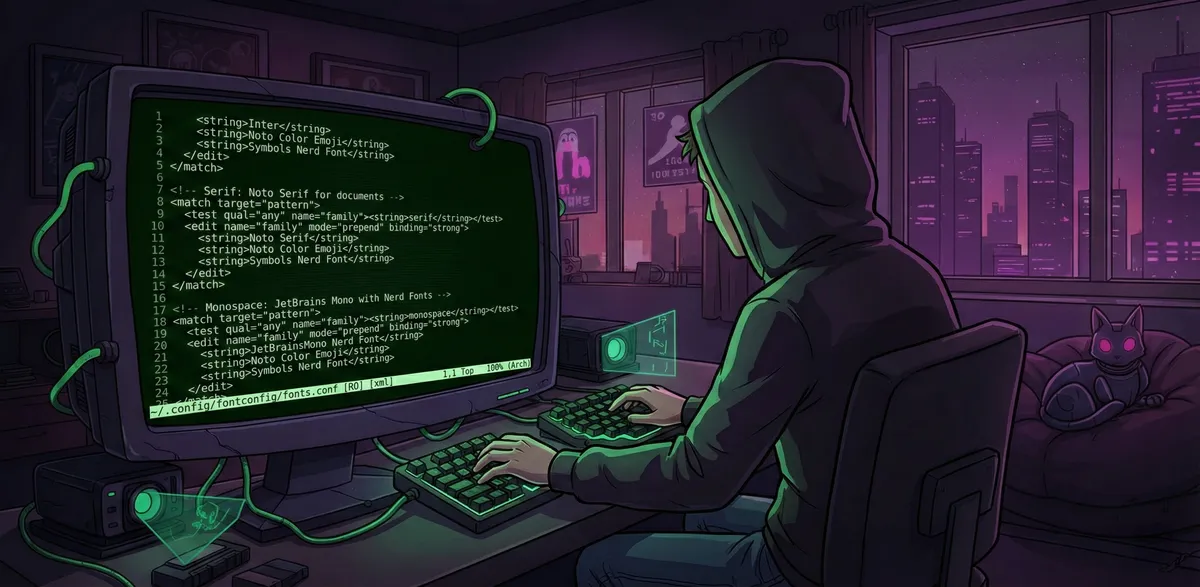
Here is my actual ~/.config/fontconfig/fonts.conf:
<?xml version="1.0"?>
<!DOCTYPE fontconfig SYSTEM "fonts.dtd">
<fontconfig>

  <!-- Sans-serif: Inter is the king here -->
  <match target="pattern">
     <test qual="any" name="family"><string>sans-serif</string></test>
     <edit name="family" mode="prepend" binding="strong">
       <string>Inter</string>
       <string>Noto Color Emoji</string>
       <string>Symbols Nerd Font</string>
     </edit>
  </match>

  <!-- Serif: Noto Serif for documents -->
  <match target="pattern">
     <test qual="any" name="family"><string>serif</string></test>
     <edit name="family" mode="prepend" binding="strong">
       <string>Noto Serif</string>
       <string>Noto Color Emoji</string>
       <string>Symbols Nerd Font</string>
     </edit>
  </match>

  <!-- Monospace: JetBrains Mono with Nerd Fonts -->
  <match target="pattern">
     <test qual="any" name="family"><string>monospace</string></test>
     <edit name="family" mode="prepend" binding="strong">
       <string>JetBrainsMono Nerd Font</string>
       <string>Noto Color Emoji</string>
       <string>Symbols Nerd Font</string>
     </edit>
  </match>

</fontconfig>
Why this works:
- Binding=“strong”: Forces apps to respect this choice.
- Fallbacks: If Inter doesn’t have a character (like an emoji or a specific icon), it immediately checks
Noto Color Emojiand thenSymbols Nerd Font. No more “tofu” boxes.
2. Fixing The Rendering (99-readability.conf)
Getting the font family right is half the battle. The other half is how it’s rendered. Linux defaults can sometimes look a bit “fuzzy” or “too bold” depending on your monitor.
I use a custom config to tune the antialiasing and hinting.
Create ~/.config/fontconfig/conf.d/99-readability.conf:
<?xml version="1.0"?>
<!DOCTYPE fontconfig SYSTEM "fonts.dtd">
<fontconfig>

  <!-- Global Defaults -->
  <match target="font">
    <edit name="antialias" mode="assign"><bool>true</bool></edit>
    <edit name="autohint" mode="assign"><bool>false</bool></edit>
    <edit name="hintstyle" mode="assign"><const>hintslight</const></edit>
    <edit name="rgba" mode="assign"><const>rgb</const></edit>
    <edit name="lcdfilter" mode="assign"><const>lcddefault</const></edit>
  </match>

  <!-- Specific Tweaks -->

  <!-- Inter looks best without autohinting -->
  <match target="font">
    <test name="family" qual="any"><string>Inter</string></test>
    <edit name="autohint" mode="assign"><bool>false</bool></edit>
  </match>

  <!-- JetBrains Mono has great built-in hinting -->
  <match target="font">
    <test name="family" qual="any"><string>JetBrainsMono Nerd Font Mono</string></test>
    <edit name="autohint" mode="assign"><bool>false</bool></edit>
    <edit name="hintstyle" mode="assign"><const>hintslight</const></edit>
  </match>

</fontconfig>
This ensures fonts look crisp without looking jaggy.
The “Stem Darkening” Secret
If fonts still look a bit too thin or “washed out” even with the configs above, there is one more layer: Freetype Properties.
I export this environment variable (in ~/.config/uwsm/env) to enable stem darkening, which adds just a tiny bit of weight to the font strokes, making them much more legible on high-DPI screens.
# Fixes for the fonts
export FREETYPE_PROPERTIES="autofitter:no-stem-darkening=0 autofitter:darkening-parameters=500,0,1000,500,2500,500,4000,0 cff:no-stem-darkening=0 type1:no-stem-darkening=0 t1cid:no-stem-darkening=0"
3. GTK Settings (The Final Polish)
If you use GNOME or GTK apps (like Nautilus, Discord, or Chrome), you need to tell GTK to use these fonts too. Even if fonts.conf handles the system requests, GTK sometimes needs a nudge.
I set these via gsettings:
# Interface font
gsettings set org.gnome.desktop.interface font-name 'Sans 11'

# Document font
gsettings set org.gnome.desktop.interface document-font-name 'Serif 11'

# Monospace font
gsettings set org.gnome.desktop.interface monospace-font-name 'Monospace 11'
Installed Packages
To get this setup, you need the actual font files. On Arch Linux, these are the packages I have installed:
sudo pacman -S --needed \
  inter-font \
  noto-fonts \
  noto-fonts-emoji \
  ttf-jetbrains-mono-nerd \
  ttf-nerd-fonts-symbols \
  ttf-nerd-fonts-symbols-mono
Then, always run this magic command to apply changes:
fc-cache -rvHow to Verify
Don’t just guess. Check what your system is actually doing.
Run this in your terminal:
fc-match sans-serif
# Should output: Inter.ttc: "Inter" "Regular"

fc-match monospace
# Should output: JetBrainsMonoNerdFont-Regular.ttf: "JetBrainsMono Nerd Font" "Regular"
Conclusion
That’s it. Two config files and a few packages, and my Linux desktop looks as premium as any Mac. The key is in the fonts.conf fallbacks—never seeing a broken icon again is pure bliss.